

Devices
Add a Grandstream phone and let RetailPhone set it up for you.
On Pro and Scale plans, RetailPhone can set up supported Grandstream phones for you. You add the phone here, plug it in, and it configures itself.
Sidebar → Phone system setup → Lines & Devices → Devices
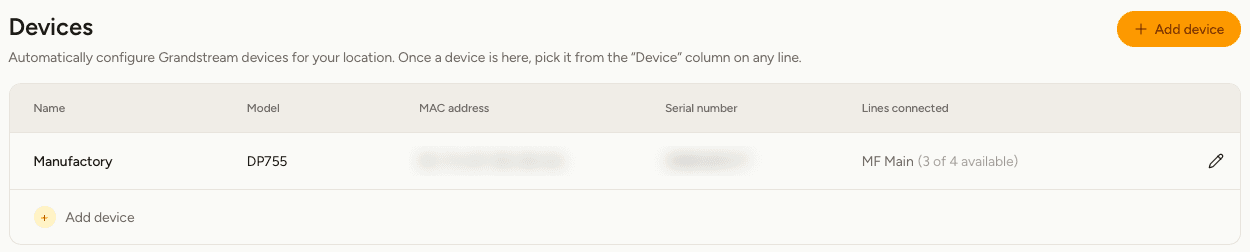
What you'll see
| Column | Meaning |
|---|---|
| Name | What you call this phone, such as "Front counter". |
| Model | The Grandstream model, read from the phone itself. |
| MAC address and Serial number | Two codes printed on the label under the phone or on its box. They identify this exact handset. |
| Lines connected | Which lines ring on this phone, and how many more it can take. |
Supported models
| Model | What it is |
|---|---|
| GXP2135 | Desk phone. Up to four lines. |
| DP750 and DP752 | Cordless base stations. Up to five handsets, one line each. |
| DP755 | Cordless base station. Up to ten handsets, and needs one extra step — see below. |
Other Grandstream models often work too. Add one and RetailPhone will tell you if it can't set it up automatically. Phones from other makers connect by hand using the sign-in details on the Lines screen.
Add a phone
You can also add a phone without leaving the Lines screen: choose Quick device add… in the Device column, enter the two codes, and the new phone is added and attached to that line in one go.
If the codes don't match a real phone, the device is listed with Not set up beside its model. Select it to correct the codes and try again — nothing is lost.
Cordless handsets
For a DP750 or DP752, pair your handsets with the base station first, using the instructions that came with them. Then add the base station here. Each handset gets one line.
The DP755
A DP755 registers and appears here like any other phone, but its lines cannot be set up automatically yet — that's a limit of the manufacturer's own system, not of RetailPhone. Add it here, then get in touch and we'll finish the setup for you.
Change or remove a phone
Select the pencil on a row to rename a phone. The MAC address and serial number can't be changed once the phone is registered — they identify the hardware, so a different phone is a different device.
Select the bin to remove a phone. Its lines go back to Manual and keep working with sign-in details.
Automatic setup is part of the Pro and Scale plans. On Basic, connect any phone yourself with the sign-in details on the Lines screen. You can't move from Pro or Scale down to Basic while phones are still connected here — remove them first.