

Lines
Set up the phones that ring in your shop.
A line is one phone that can ring and take a call. A small shop usually has one, at the counter. Each line has its own voicemail.
Sidebar → Phone system setup → Lines & Devices
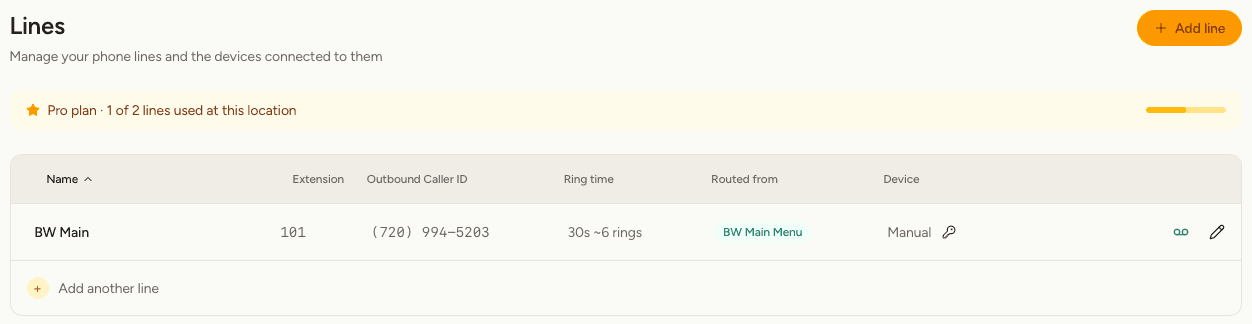
What you'll see
| Column | Meaning |
|---|---|
| Name | What you call this phone, such as "Front counter". |
| Extension | A short number for this line. RetailPhone picks the next free one for you; you can change it while you're editing the row. |
| Outbound Caller ID | The number people see when you call out from this line. Choose one of your own numbers, or block it. |
| Ring time | How long it rings before voicemail picks up. Thirty seconds is about six rings. |
| Routed from | The numbers and menus that send calls here. |
| Device | The phone connected to this line, or Manual. |
Select any column heading to sort by it.
Add a line
A new line won't ring until something routes to it. Add it to a menu option, or point a number straight at it.
Change a line
Select the pencil on its row, make your changes and save. Editing happens in the row itself, so you can see the rest of your setup while you work.
Connect a phone
There are two ways, and you can mix them across your lines.
A supported Grandstream phone, on Pro and Scale. Add it under Devices, then pick it in the Device column while editing the line. The phone sets itself up when it next connects. The list shows how many free slots each phone has left, as a number in brackets — a phone showing (3) can take three more lines.
Any other phone, or a phone app, on any plan. Leave Device as Manual, save, then select the key icon beside it. That shows the sign-in details for this line — a username, a password and a server address — to type into your desk phone or a phone app on your mobile. Treat them like a password: anyone with them can make calls billed to you.
Open this line's voicemail
Select the voicemail icon on the row to jump straight to this line's mailbox in Voicemail.
Delete a line
Select the bin on the row. Any number pointing at the line is set back to Not routed at the same time, so no caller is left reaching a line that no longer exists. Check Overview afterwards and give those numbers somewhere new to go.
If a line's Routed from column is empty, nobody can reach it. Check the Overview map after you make changes.