

Numbers
Get phone numbers for your shop and choose where each one sends its calls.
A number is what your customers dial. Each number sends its calls to one place, usually your main menu.
Sidebar → Phone system setup → Numbers
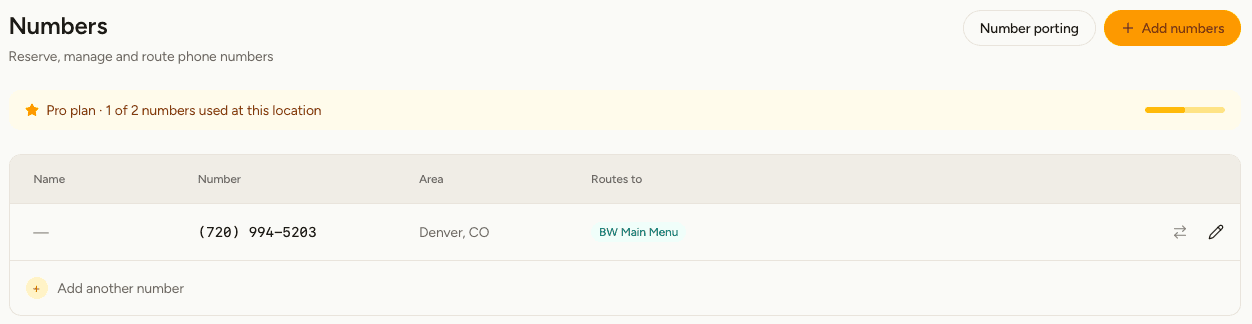
What you'll see
| Column | Meaning |
|---|---|
| Name | An optional label, such as "Main" or "Catering". Staff see it on the handset when a call comes in, so they know which number was dialled. |
| Number | The phone number itself. |
| Area | The city and state the number belongs to. |
| Routes to | Where calls to this number go, or Not routed if nowhere yet. |
The banner above the table shows how many numbers your plan includes at this location and how many you've used, including any still being moved across.
Get a new number
Choose where a number sends calls
Forward calls to another phone
Choose Forward as the route type and enter the number to send calls to — a mobile, or the phone you use today. Callers dial your RetailPhone number and the call rings wherever you said.
This is the quickest way to start: point your number at your existing phone, then build your menu at your own pace.
Move a number to another location
Select the two-arrows icon on the row to move a number to a different shop in your organization.
A number has to be set to Not routed before it can be moved. Moving a routed number would leave it pointing at a menu or line that belongs to a different shop, so the button stays switched off until you clear its routing.
Give a number back
Select the bin on the row to release a number you no longer need. Releasing is permanent — the number goes back into circulation and cannot be recovered.
Keep a number you already have
Select Number porting to move a number from your current phone company. See Move an existing number.
Need more numbers than your plan includes? Add extra numbers on the Billing tab.