

Summary
A quick look at how busy your phones have been and what needs your attention.
Summary is the first screen you see after signing in. It answers three questions: how many calls came in, were they answered, and is anyone waiting for a call back?
Sidebar → Summary
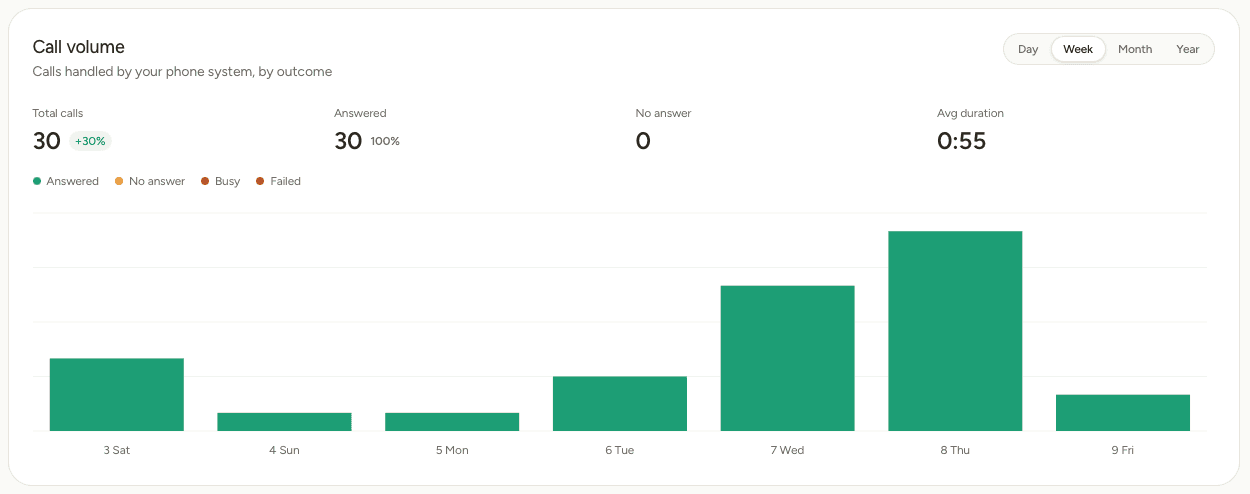
Call volume
Choose Day, Week, Month or Year at the top right of the card.
| Figure | What it tells you |
|---|---|
| Total calls | Every call your phone system handled in the period. The percentage beside it compares the period with the one before, so "+30%" means 30% busier than last week. |
| Answered | Calls that were picked up, and their share of the total. |
| No answer | Calls that rang out. A high number here means missed customers. |
| Avg duration | How long a typical call lasted. |
Each bar in the chart is coloured by outcome: Answered, No answer, Busy or Failed.
Recent calls
The six latest calls across all your lines, with who called, how long it lasted and the outcome. Select View all to open Call history.
Recent voicemails
Your four newest messages, with the start of each transcript. Select the play button to listen, or View all to open Voicemail.
Refresh
Summary loads with the figures it already has and checks for newer ones in the background. Select Refresh to check right now.
Summary covers the location shown in the sidebar. Choose All locations to see your whole organization at once. See Switch between locations.